


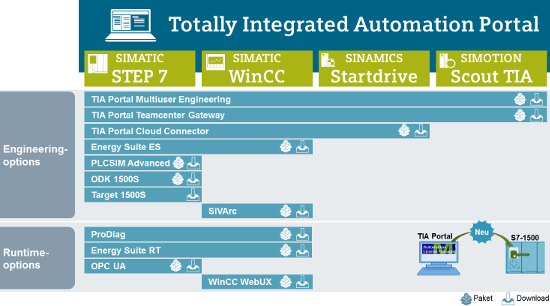
TIA Portal V14 SP1 Support Windows 10 is probably a software that is meeting the requirements of many people who are using Windows 10. For a while, it is good to learn, install and use. Today, I will teach people how to download, install and related issues.
- Operating system requirements:
Support on the following operating systems: (Windows x64 only)
+ Windows 7 Home Premium / Windows 7 Professional / Windows 7 Enterprise / Windows 7 Ultimate
+ Windows 8 Professional / Windows 8 Enterprise
+ Windows 10 Home / Windows 10 Professional / Windows 10 Enterprise
+ Windows Server 2008 R2 StdE SP1 / 2012 R2 StdE /2016 Standard
- You install software according to the following steps :
+ Step 1 : Setup Step7_Professional_V14_SP1
+ Step 2 : Setup “PLC-SIM_V14_SP1”
+ Step 3 : Setup “WinCC_Professional_V14_SP1
+ Step 4 : Setup “WinCC_Runtime_Professional_V14_SP1
+ Step 5 : U.n.l.o.c.k Software “Sim_EKB_Install”
Update: Download Automation License Manager V6 SP8(Compulsory Upgrade)

- WinCC Runtime error correction :
Fix error not installing WinCC V14 SP1 Professional Runtime with content: WinCC Runtime Professional V14.0 SP1 requires SIMATIC WinCC Professional Runtime V14.0 as installation requirement …
+ Step 1: Download the modified Sia2.ini file (Deleted TERMS content): Link Google
+ Step 2: Find the folder you unzip when running the downloaded file. The default is in Temp (Open Run and enter% temp% and press Enter to enter the Temp folder)
+ Continue into Resources folder under the default path … Temp SIMATIC WinCC Runtime Professional SP1 for V14.0 DVD_1
+ Copy the downloaded Sia2.ini file above and overwrite the Sia2.ini file in Resources.
+ Click Start.exe at SIMATIC WinCC Runtime Professional SP1 for V14.0 folder in Temp to install always !
- Fix the “Report license error” error :
+ First go to the search bar or press Win + S and then type Services.
+ Then, e find out to Automation License Manager Service to stop it.
+ Then go to File Explorer and install the hidden folder feature and continue typing MachineKeys into the search box but the search drive is C drive.
+ After you find the path containing that directory, then delete it all.
+ It shows 6 different paths containing the folder that erases it. E want to delete quickly, then select the folder you just found e right-click and go to properties and copy the path to another File window.
+ After finishing erasing, remember to start the service ALM before, and stop it.
+ Above is how to fix it successfully applied on Step 7 V5.6, have not tried it on TIA V14 SP1 so please try it and give it to the results !
>>> The installation process is completed: D While installing the software, if you have any problems please comment below the article! Thanks for reading the article!